
Create an event page
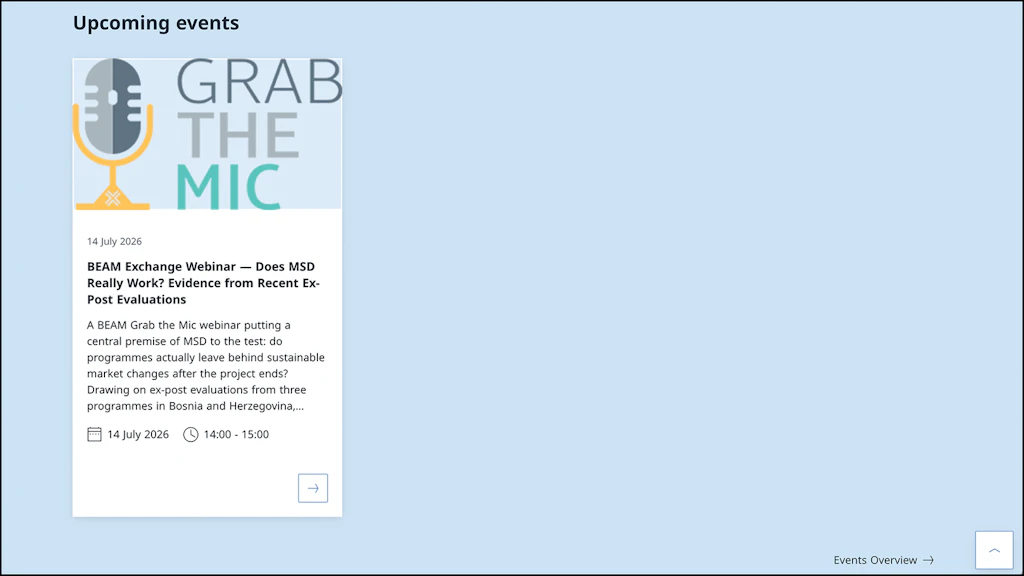
An event page announces upcoming events by displaying key event information directly in the teaser box. The layout focuses on telling what the event is about and on inviting the audience to register. It appears on the network home page and can be found through the news & events overview page.
Create page
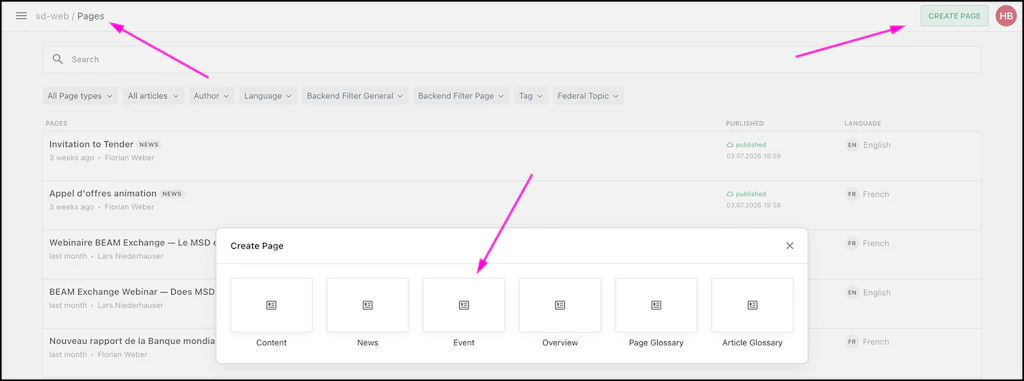
In the media folder Pages click on CREATE PAGE and choose Event.
Lead section
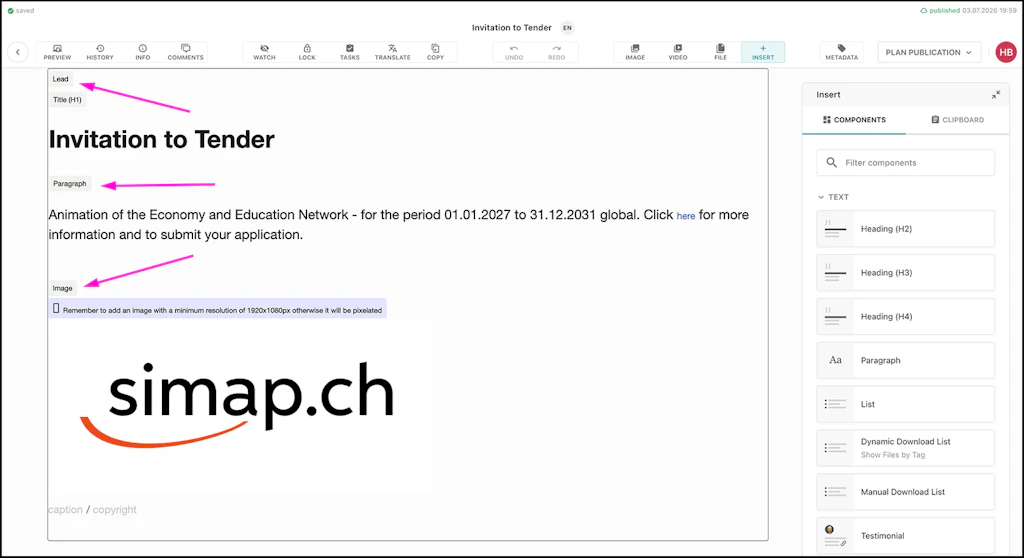
The lead section is key for catching the interest of your audience and ranking high on search engines such as Google.
- Search engines rate the H1 title highly to catalogue your page. Make sure the title is self-explanatory.
- The paragraph below the title should introduce the subject in a compelling way. Write it as if you had to explain the information on the page to your target audience.
- Always set an image! If you have trouble finding an appropriate image, find one on a royalty-free image library such as pixabay.com, ask the AI to generate one, or use an existing image:
- Click on the image placeholder: On the right side the image editing tools appear
- Click PICK FROM MEDIA LIBRARY
- Search for an image. You can use search words such as "news"
If you don't use one of the elements in the lead section, do not delete them! Leave them empty. Just don't delete them. Deleting these elements might might prevent you from reinserting them later.
Metadata
Your content from the lead will be copied to the Metadata section. You can always change it manually. Search engines such as Google use metadata when suggesting pages in response to an online search. Start by filling out the basic metadata fields.
- Click on the METADATA button next to the publication button.
- Teaser image: If you have chosen not to use a header image, make sure you set a teaser image. It is key for a uniform look of the web page: Every teaser box must have a teaser image.
- Teaser text: Is automatically copied from your lead text. Rewrite it to make it short and to the point.
- Slug/URL: Is automatically copied from your lead title.
- Backend Filter General: Set a filter according to the overall subject.
- Backend Filter Pages: Set the filter to "News & Events". Add a second tag depending on the event: "Event (SDC)", "Event (External)", "Event (Network)".
- Tag: Select "Events (featured)" and "News & Events".
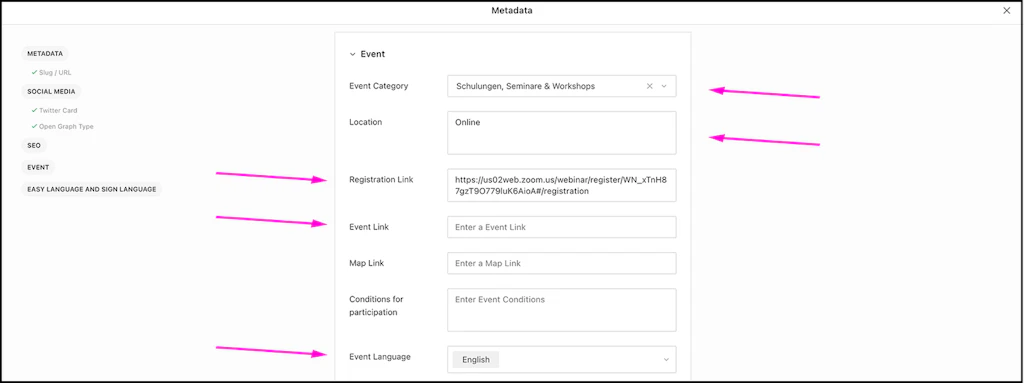
Unlike other page types, event pages' key information is stored in the metadata section. Scroll down to Event.
- Choose an Event Category.
- Set the Location of your event. For online events, write "online".
- Registration Link: Have you created, for example, an online registration form? Paste the form's URL here.
- Event Link: If you are planning to post updates and results on your event page, create a separate Content Type page from this one and paste the URL here. Event Type pages are great for announcint upcoming events. They are not meant to be used as a resource page during or after the event.
- Tell the audience what language will be used during the event.
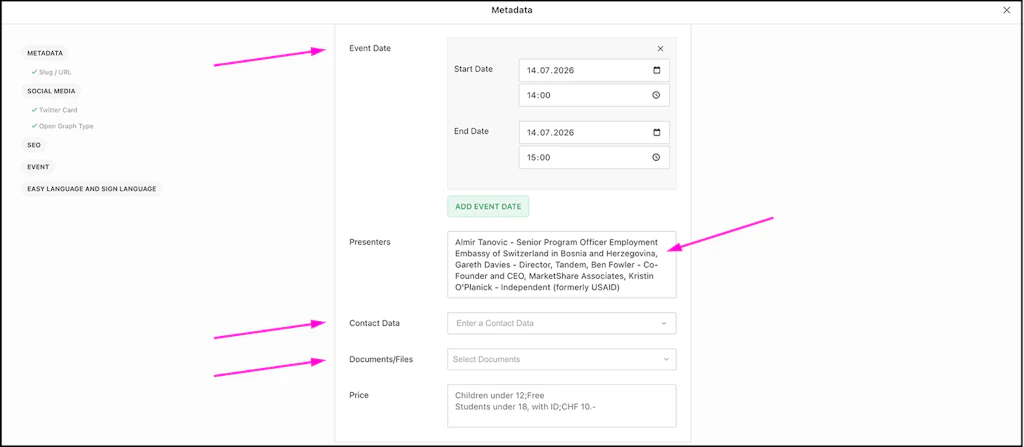
- Add a start and end date.
- List the speakers you have invited.
- Add a contact so others can reach you with questions.
- Documents/Files: This is the only place you can leave documents on an event page.
SEO
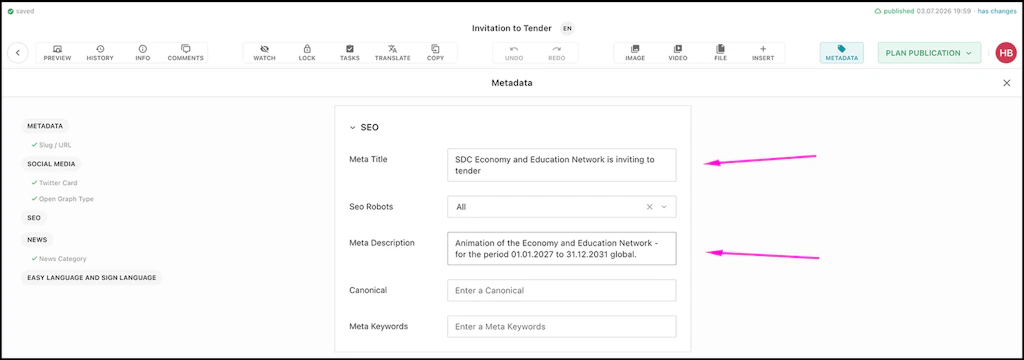
The search engine optimisation parameters are displayed when a page appears in a search result. They are key if you want people clicking on the link.
- A good meta title answers the question your audience most likely asked the search engine.
- The meta description field describes the page in one short sentence and carries the key words.
- Leave all other SEO fields as they are.
Page body
Below the lead section you can add further content. Please note that the content type Event has a limited set of components. For a start, the component "Section" is missing. Also, there is no component to display documents.
Publish your page
Livingdocs doesn't have a satisfactory preview. To see the final design of your page, you need to publish it.
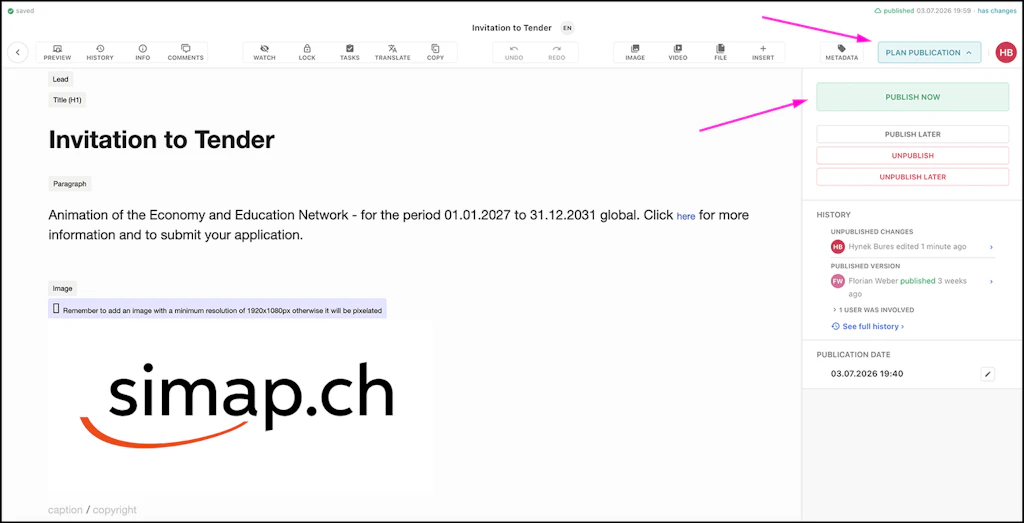
- Click PLAN PUBLICATION and PUBLISH NOW.
- PUBLISH LATER lets you set a future publication date
- PUBLICATION DATE lets you choose the publication date displayed on the page.
Check your page for errors: Are there any spelling mistakes? Are the links working? Is the width of all components the same (see section width)?
Index
Need help with your page?
Switzerland
Hynek supports our network with everything related to Livingdocs and MS Teams.