
Create a page
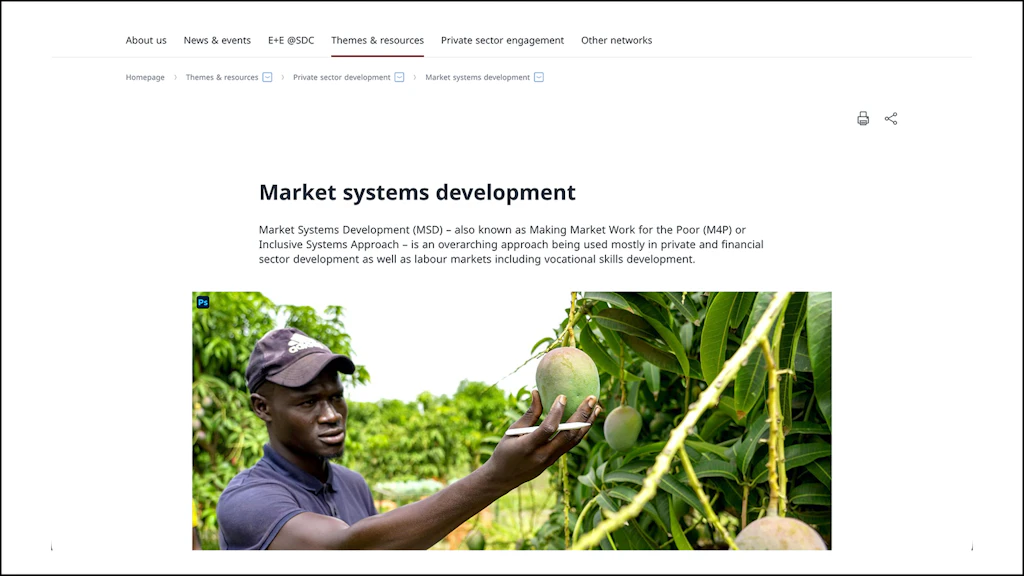
A simple page consists of three sections. First, the lead section with the main page title, a short introduction (the text you are reading right now) and a header image. Second, the body with its information in the form of text, links, documents and images. And finally the 'call to action' section where you offer the audience further topics to explore, thus keeping them reading your content.
Create page
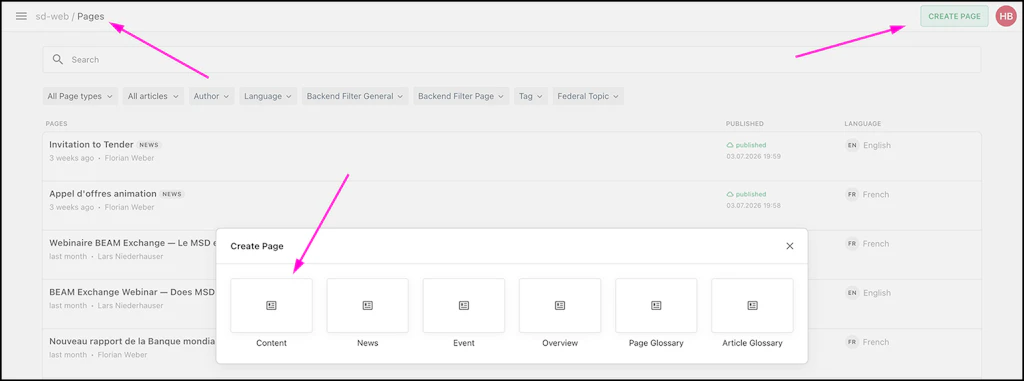
In the media folder Pages click on CREATE PAGE and choose Content.
Lead section
The lead section is composed of three web components: Title H1, paragraph, image. Please fill out all of these components in order to keep a consistent look of the E+E webpage. Do not delete any of these components as this might lead to technical problems.
Click on "Lead" in the top left corner of the lead component. The edit menu wil display on the right. You can chose to hide the publication date from the page. It is recommended to hide the publication date if it is not really necessary to know when the page was published.
Body section
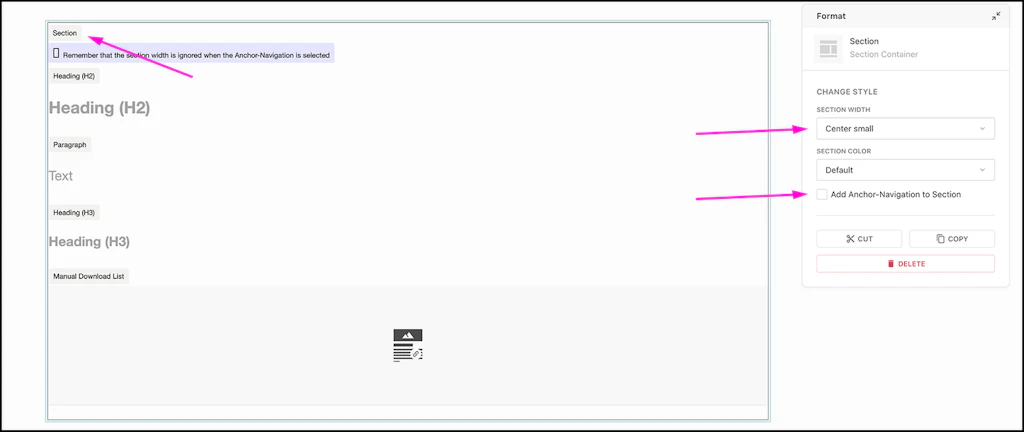
The content page template offers you all the web components Livingdocs has to offer. The first component you should drag and drop below the lead section is the Section component. Place all other components into the section. The section defines:
- The width of your page: Always set the section width to “Center small”.
- The background color: The default color is white.
- The display / or not of the table of contents. Click 'Add Anchor-Navigation to Section'. The table of contents displays H2 Titles only!
There are many web components you can use to display your content. Here a short overview.
Headings H2, H3, H4
Different heading sizes are not just about what looks good. They structure the page so that web crawlers, such as Google Search, and AI agents can use the information on your page to provide results for people searching for your topics. Try to stick to the hierarchy: Start with H2. Use H3 for subheadings under H2, and so on.
List
The same applies to the list component. Do not create your own list within the paragraph component. Use the list component instead. Web crawlers will appreciate it. New bullets are created by pressing ENTER.
Manual Download List
Dynamic and Manual Download List components are here to display your documents for download. Dynamic lists display all Documents with a specific tag. This feature is used very little on the E+E site. Manual Download Lists are very common. They are explained in the 'Upload documents' tutorial section.
Accordion
Accordions are dropdown elements that help you save horizontal space on your page. For example, use the Accordion component to display a long list of documents in a Manual Download List, so that visitors don't have to scroll for too long. However, remember that whatever you put into an accordion is not visible at first. Visitors must click to see the content.
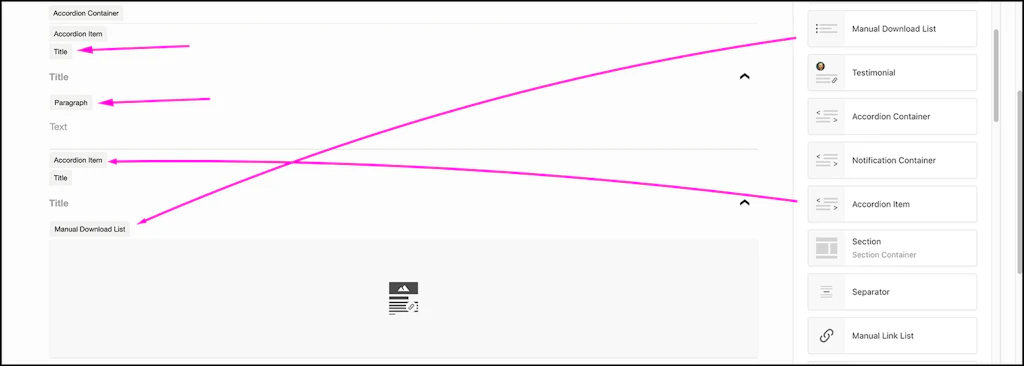
- Start by draging&dropping an Accordion Container into the Section component.
- Title: Give each accordion item a title.
- Paragraph: If you don't want to use the Paragraph component, delete it. Add other components into the accordion item!
- For example, you can add a Manual Download List into the Accordion Item.
- Accordion Item: For several dropdowns drag&drop Accordion Items into the Accordion Container.
Image
There is a separate tutorial on how to add an image to a page.
Video
Inserting videos into your page involves two steps. First you need to upload your video to the SDC YouTube channel. Contact the FDFA media team and provide them with the title and descpription of your video. Paste the YouTube video link into the Video Embed component. Do not upload videos directly to Livingdocs! The system doesn't host enough space for a dedicated video library.
Call to action section
Index
Need help with your page?
Switzerland
Hynek supports our network with everything related to Livingdocs and MS Teams.