
Upload documents
Adding a document to a page involves two basic steps. First you upload it to the Livingdocs platform. Then you insert it into one of the page components available to you.
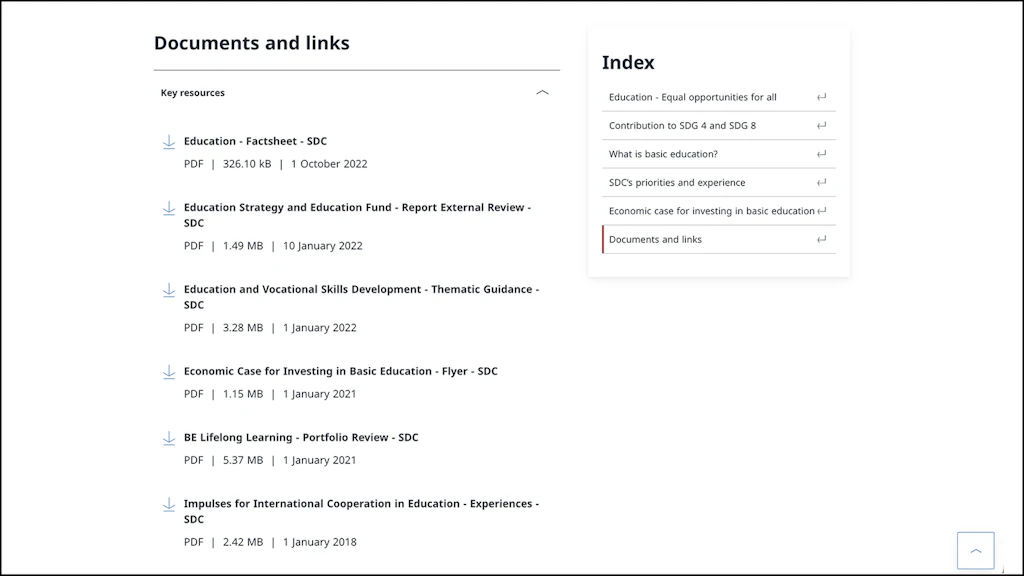
Format your document
Different document types can be uploaded to Livingdocs such as Word, Excel or PowerPoint. If the document is to be read-only, use the PDF format. For this, convert your Word, Excel or PowerPoint documents into PDFs. The PDF format is the most accessible and will display the same on any device.
Upload SDC documents only!
If you want to display documents from your partners, or other actors in the field, create a link to their page or document. Do not download it from their web page in order to upload it here. First, it takes less time to create a link than to upload a document. Second, it is good internet practice to link to the original source. Third, your link will always point to the latest document version.
Set a file name
Set a file name for your document according to good practice. Separate each piece of information with a "-" and a "_" before the language abbreviation. Here is an example:
EE-LED-Guidance-Managing-Projects-SDC-2022_EN.pdf
- EE: Use "EE" for documents from this network. Other networks have the following abbreviations: AFS, CDE, H2O, H, MFD, PGE.
- LED: The overall subject of the document. In the example above, the documents are about "LED".
- Guidance-Managing-Projects: Title of the document in two to three key words.
- SDC: Add the publishing institution.
- 2022: The publication date.
- EN: For Documents in English. FR for French. IT for Italian. DE for German.
Upload
In the media folder Files click on UPLOAD FILES. Select the one or multiple documents on your computer you would like to upload. An upload mask will open. If you are uploading multiple documents at once, start filling out the fields common to all documents:
- Click on SELECT ALL.
- Publisher: Eidgenössisches Departement für auswärtige Angelegenheiten
- Backend Filter General: Which E+E sub-theme do the documents belong to?
- Tag: More specifically, what is the topic, theme or subject of your documents? You can select more than one tag.
- Backend Filter Files: What type of documents are you uploading?
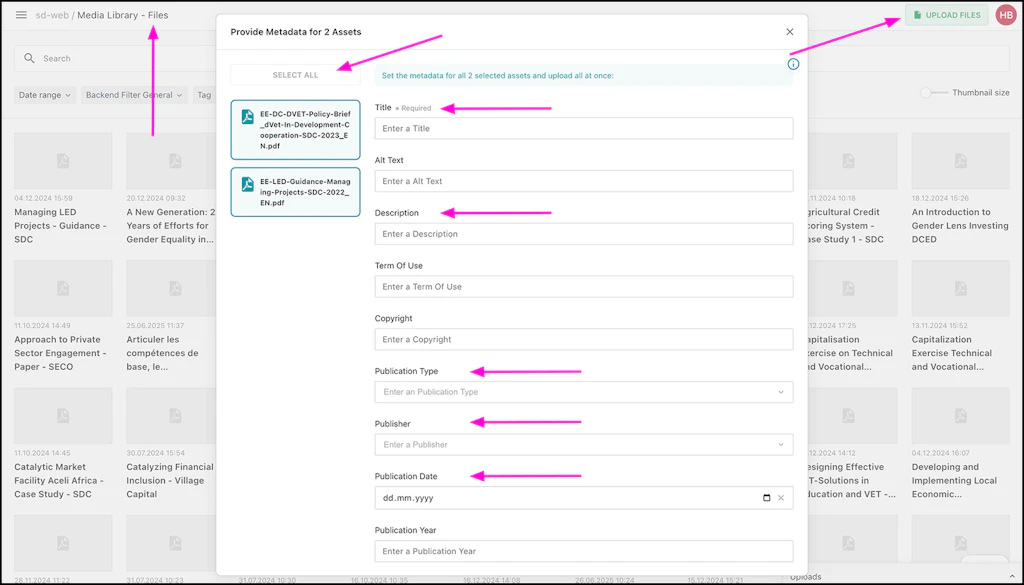
Then click on one document at a time and fill out the other metadata fields:
- The Title is composed of three elements: The document's title, the document type, and the publishing institution, separated by "-". Here is an example: Economic Case for Investing in Basic Education - Flyer - SDC
- Document title as written on the document
- Type of document. Is it a: Review, Report, Guidance, CapEx, etc.
- Publisher of the document: SDC. If the paper was published by multiple institutions, name the lead publisher.
- Description: A short 1 sentence summary of the document's content
- Publication Type: Select one type. If nothing fits, use "Weitere amtliche Dokumente"
- Publication Date: The date of the document's publication, as written in the document. If you upload several language versions of the document, you need to set the publication date for each version.
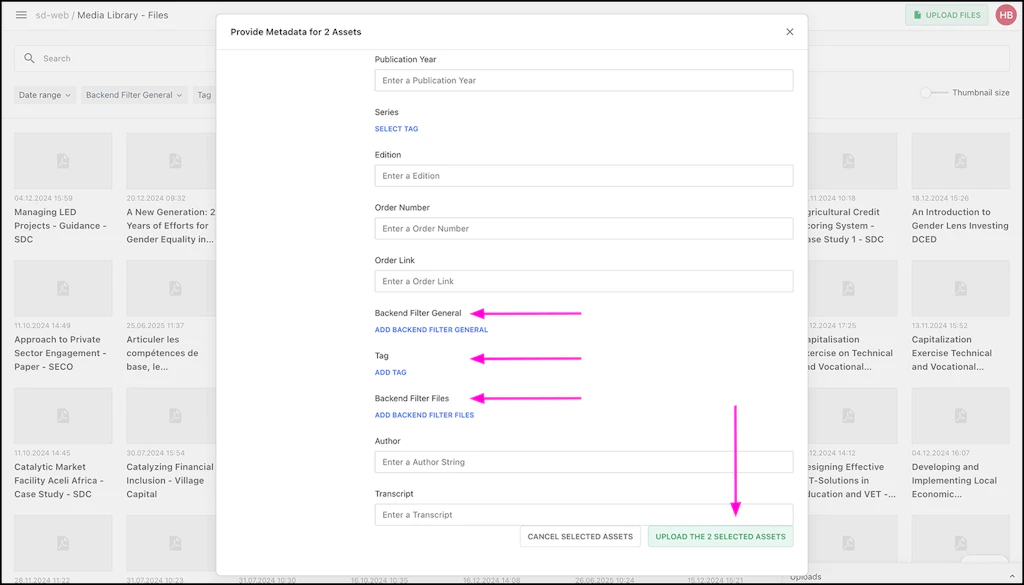
All the above fields are mandatory! Push SELECT ALL again before you push UPLOAD.
Uploading multiple language versions
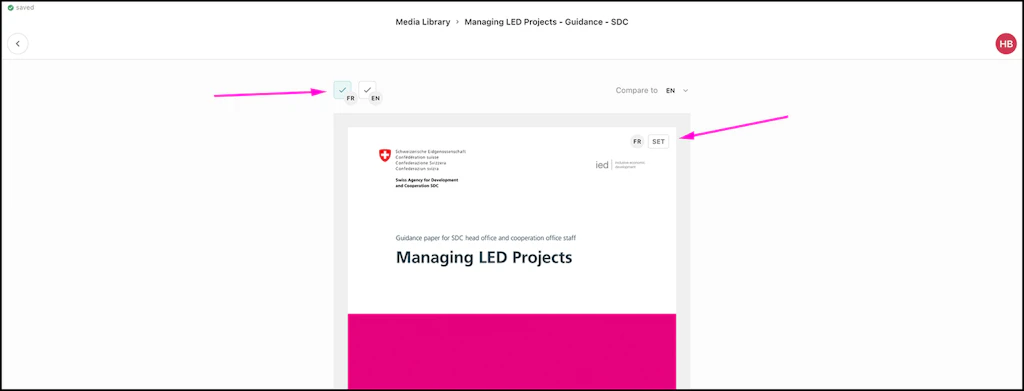
The E+E page exists in two languages, English and French. English is the default language. If you wish to upload a document in both languages:
- First upload the English version
- Find the document in the file library and click the Edit full details button (The icon looks like a "pen") below the document image.
Insert document into page
Livingdocs proposes different components to display a document on a page.
- Dynamic Download List: The component displays all documents with the same tag or tags.
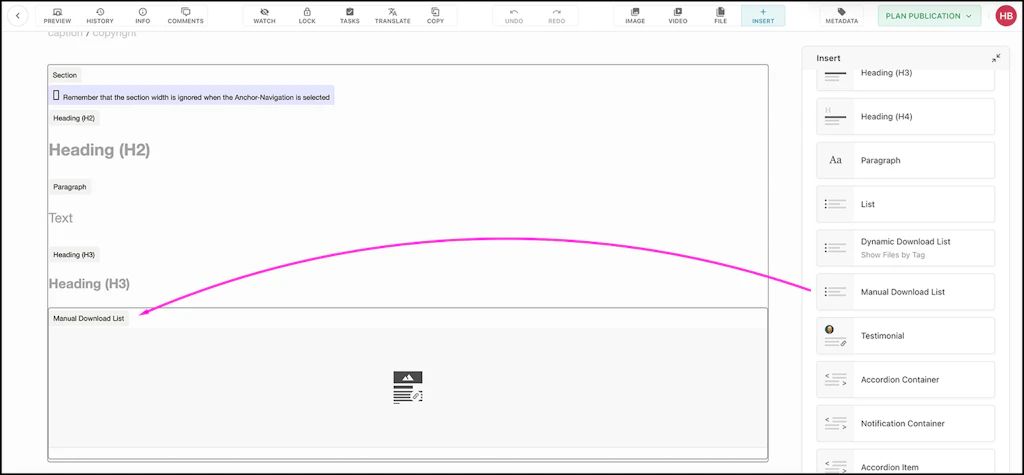
- Manual Download List: The component displays documents you choose manually.
- Manual Publication Teaser: The component shows a thumbnail of the first page of your document.
Manual Download List
Usually you will use the Manual Download List.
- Click and drag the component into your page structure.
- Order: Generally, display documents in alphabetical order.
- Sort Order: From A to Z
- Search and Select Media: Search for the title of your document. Use "title" to narrow your search results.
- Add the document to the component by clicking the checkmark box.
- Show description: Check this box if you want to display the text in the document's metadata field "Description".
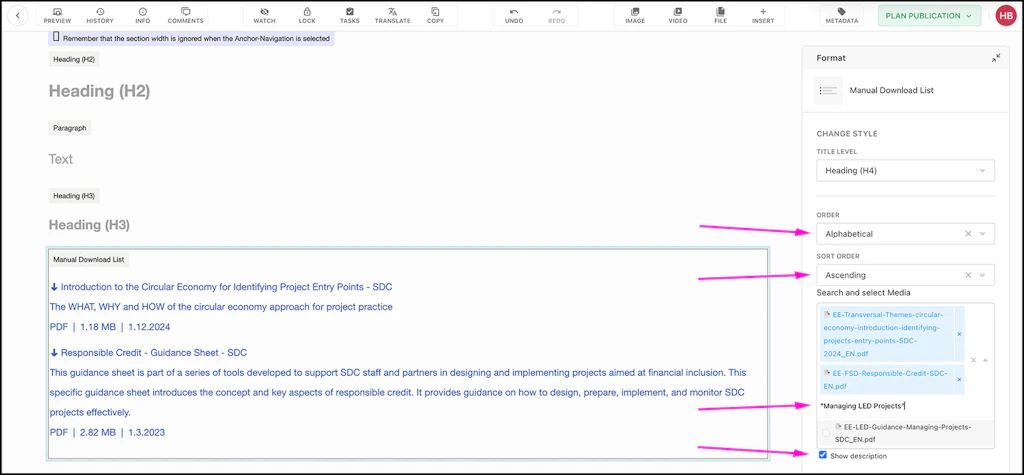
If you want to keep one or more documents at the top of the list, create a second Manual Download List for them. Place this list above the other one. This way, you can control which documents are displayed first.
Manual Publication Teaser
Livingdocs gives you a visual way to highlight important documents.
Documents in other languages
Index
Need help with your page?
Switzerland
Hynek supports our network with everything related to Livingdocs and MS Teams.